 Farol
FarolPipelines
A pipeline is a list of checks Farol runs on your branch. Mix your own scripts with AI reviews, wire them together on a canvas, and decide which ones Chat runs after every change.
Starter pipelines
The first time you open a project without pipelines, Farol adds four to get you going. Edit them to match your project, or delete the ones you don’t need.
Pipelines are saved in .farol/pipelines.json in the project. Commit that file and everyone on the team gets the same checks.
Step types
Shell
A command, run in the project folder through your own login shell, so it has your PATH and environment. A non-zero exit code fails the step.
npm run lint
npm test -- --run
AI
A prompt, run by the agent and model you pick on the step. The step sees the output of the steps before it. Use it for checks a script can’t do: architecture, naming, security, or plain slop.
Review the diff for duplicated logic and dead code.
Fail if a new function repeats one that already exists.
You don’t need to explain how to pass or fail. Farol asks the agent to end with a pass or fail verdict and reads it, so a review that finds a problem fails the step even though the CLI itself exited cleanly.
Git
One fixed Git command, with no shell text. Pick the operation, a ref to compare with (HEAD if empty), and optionally paths or globs to limit it to.
| Operation | Output |
|---|---|
diff | The full diff against the ref. |
diff-stat | Files changed, with line counts. |
log | Commits since the ref. |
status | The working tree status. |
changed-files | Just the list of changed paths. |
A Git step is the usual first step of a review: it hands the diff to the AI steps after it.
Build a pipeline on the canvas
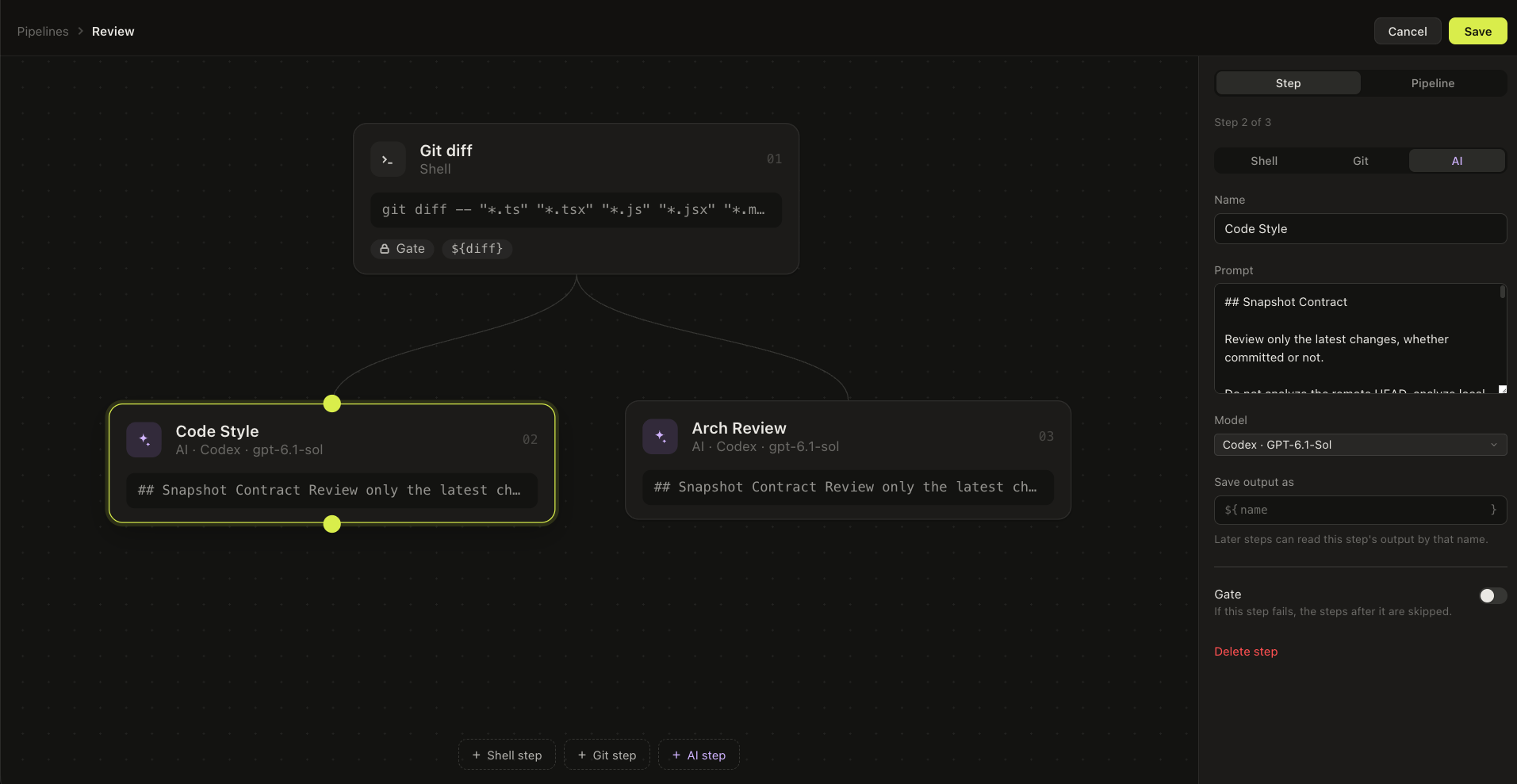
Create or open one
In the Pipelines panel, select New pipeline, or select Edit on an existing one. The editor opens as a canvas.
Add steps
Add a Shell step, Git step, or AI step. Select a step to open its settings: name, then the command, the Git operation, or the prompt and model.
Wire them in order
Drag from the port on the bottom edge of one step to the top of another. The second step waits for the first. Steps that hang off the same parent run side by side. Hold space or middle-drag to pan, and ⌘-scroll to zoom.
Save
Select Save. The pipeline is written to
.farol/pipelines.json.
Pass output to later steps
Fill in Save output as with a name, like diff. Later steps can then use ${diff} in their command or prompt. A shell step can also read a Git step’s output from a file with ${diff_file}, which has no size limit.
Review this change for security issues:

${diff}
Two steps that run side by side can’t share the same output name.
Gates
Turn on Gate for a step and a failure there skips every step after it. Shell steps are gates by default, so a broken build doesn’t waste an AI review. AI steps are not, so a failed review still lets a summary step run.
When Chat runs a pipeline
After the agent changes files in Build mode, Farol decides which pipelines to run. Two switches on the editor’s Pipeline tab, under Chat, control this:
- Mandatory in Chat: runs after every change the agent makes. Use it for the checks that must always pass, like lint and tests. These show a Required badge in the Pipelines panel.
- Allow Chat to auto-select: Farol may add the pipeline when it judges it relevant to the change. Leave it off for pipelines that change things, like a release, so they only run when you start them.
The agent also sees the list of pipelines and picks the ones that fit its change. A turn that changed no files runs nothing. The task counts as done only when every selected pipeline passes.
Build mode needs at least one pipeline with steps. Without one, the message box asks you to create a validation pipeline first. Plan mode works without pipelines.
Runs and results
Each run opens in a tab named after the pipeline, with live output for every step. In the Pipelines panel, the card shows each step’s status and time. From there:
- Run or Run again starts the pipeline by hand. Stop cancels it.
- Run required runs every mandatory pipeline at once.
- Fix in Chat appears on a failed run. It sends the failure report to the agent.
With Send failures to Chat on in Settings › General, failures go to the agent on their own. The report is written to .farol/last-failure.md, the agent fixes the problem, and the pipeline runs again.
Results belong to the branch they ran on. After you switch branches, a pipeline shows as not run, and the earlier result is listed under other branches. A run tab turns amber once the checkout has moved on.
Run a pipeline before commit or push
On the editor’s Pipeline tab, under Git hooks, turn on Before commit or Before push. Farol installs a hook in .git/hooks, shared by every worktree of the repository. A commit or push, by you or by the agent, then waits for the pipeline and is blocked if it fails.
- If Farol is closed, the hook lets the commit or push through.
- Farol never overwrites a hook you wrote yourself.
.gitisn’t committed, so each clone installs its hooks when the project is opened in Farol. The setting itself is shared in.farol/pipelines.json.
If an AI step can’t run
If a step’s agent is missing or has hit a usage limit, the step fails with a note saying why. To try another model instead, add one under Pipelines in Settings › Fallbacks. See Setting up agents.