 Farol
FarolChat
Chat is where you work with the agent. You describe the task, it plans or builds, and Farol runs your checks on what it changed. This page covers everything in the Chat panel.
One chat per branch
Each checkout has its own chat. Switch to another project or worktree in the rail and you switch chats with it, so two agents can work on two branches without mixing conversations. A chat is kept when you quit Farol and continues where it left off when you open the project again.
Plan and Build
Pick the mode below the message box before you send.
When a plan is ready, select Execute plan under it. Chat switches to Build and sends “Execute the plan” for you. A finished plan includes a diagram of the approach, so you can check it before any code changes.
Build needs at least one pipeline with steps. A new Build chat also offers starter prompts under the message box, such as “Run Lint & Typecheck”, which run a pipeline and have the agent fix what fails.
The message box
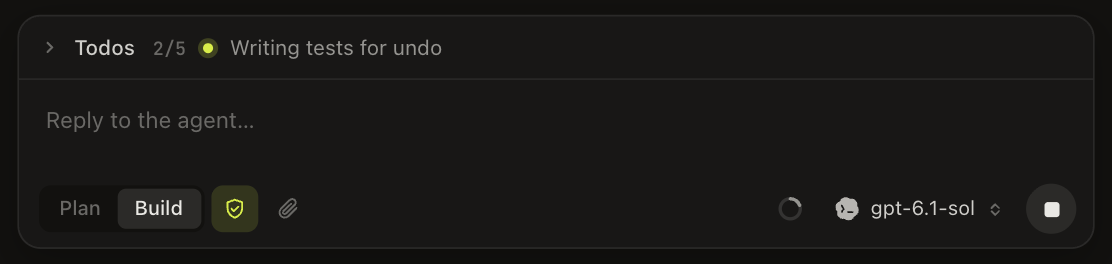
- Enter sends. Shift + Enter adds a new line.
- Type
@to mention a project file. Keep typing to filter the list, then pick a file to insert its path. - Type
/at the start of a message to list the agent’s skills, such as theSKILL.mdskills in your project’s.claude/skillsor.agents/skillsfolders. - Drop files onto the box, or select the paperclip, to attach them.
- Select the agent button to switch the agent or model for this chat. It changes this chat only. Your default stays in Settings.
- While the agent is working, the send button becomes Stop.
Approving tools
The shield next to Plan and Build decides whether the agent’s tools run without asking. With auto-approve on, the agent edits files and runs commands on its own. Turn it off and the agent stops and asks in Chat first. Answer with Allow once, allow that tool for the rest of the chat, or Deny. The change applies from the next turn.
New chats start with the setting from Auto-approve tools in new chats in Settings › General, and each chat can change it for itself. Claude, Codex, and OpenCode can ask first. For other agents the shield stays on. Plan mode doesn’t show it, since Plan changes nothing.
Reading the agent’s replies
Tool activity
Each turn shows what the agent did as compact cards: files it read or edited, commands it ran, and searches. Expand a card to see the details.
Diagrams
When the agent proposes or finishes a change, it explains it with a small flowchart or sequence diagram, drawn right in the message. Read it to check the approach without going through the diff.
Questions
When the agent needs a decision, it asks with a question card instead of guessing. Pick an option, or type your own answer, then select Continue. Skip lets the agent go on without an answer. While a question waits, the toolbar shows a marker, so you notice it even with Chat closed.
Todo list
On longer tasks the agent keeps a todo list above the message box and ticks items off as it goes. The list belongs to the checkout, so you can see how far along it is at a glance.
Checks after each change
When a Build turn changes files, Farol runs the pipelines that apply. Pipelines marked Mandatory in Chat always run, and the message box reminds you that required pipelines run after every change. The agent picks others that fit the change.
Each run appears in Chat as a card with its status. Select it to jump to the run’s tab. If a check fails, the report goes back to the agent, which fixes the problem, and the checks run again. The task is done only when they all pass. See Pipelines for how the selection works.
Long conversations
The ctx reading next to the message box shows how much of the model’s context the agent’s latest step used. It turns amber from 70% of the window. It only appears when the agent’s CLI reports usage.
As the context grows, answers get less precise. When it gets large, or the agent runs out of context, Chat offers a Fresh start. The agent writes a handoff note with what is done, what was decided, and the next step. The chat then continues in a new session with your task, your latest requests, and that note. Nothing in the chat is deleted. Fresh start is always your choice; Farol never does it on its own.
Clearing a chat
Select Clear chat to start over on this branch. Farol asks first, because clearing permanently deletes the branch’s messages. To keep the history but give the agent a clean slate, use Fresh start instead.
Standing instructions
To give the agent the same instructions in every chat, such as your code style, add a custom prompt. See Setting up agents.